Share
How to Embed Large Photo Slideshows in WordPress using Fancybox
Music photographer and PhotoShelter’s new marketing associate, Chris Owyoung teaches us a great way to embed large-format slideshows into our Wor...

Music photographer and PhotoShelter’s new marketing associate, Chris Owyoung teaches us a great way to embed large-format slideshows into our WordPress blogs. Don’t worry, there’s (almost) no coding necessary!
By Chris Owyoung
The recent release of PhotoShelter’s new embeddable slideshows, featuring 20+ customizable options, prompted me to look for a bigger and better way to integrate them into my WordPress blog. The solution (seen in the video below) is elegant and relatively easy to replicate.
If you have a compatible WordPress blog keep reading and find out how it’s done.
Can’t I add photos and slideshows to my blog already?
Yes, WordPress has the ability to embed things like photos, slideshows and videos by default. However the size of the photos or slideshows will always be limited by the size of the content area of your WordPress template. If you’re like me and your clients prefer larger photos than your template allows, you have a problem!

What is this WordPress thing?
Like many photographers who are marketing themselves to google and the thousands of potential clients it provides, I turned to the WordPress blogging platform to help strengthen my SEO and to give clients a way to get to know me (and my work) before they call or email.
After following the advice in PhotoShelter’s SEO Cookbook for Photographers for a couple of months, my website went from page six on google to page one for nearly all of my targeted keywords and phrases. With my SEO strategy nailed down, I focused on ways to make my blog entries more engaging to visitors. I discovered that when people talk about ways to add functionality to WordPress, they’re speaking about either themes or plugins.
Themes vs. Plugins
There are many great themes for blogs, including some beautiful WordPress templates built for photographers by Graph Paper Press. However, if you’re like me, you’ve discovered that it’s very hard to customize or add functionality to an existing theme with some serious coding know-how. This is where plugins come in.
What are Plugins?
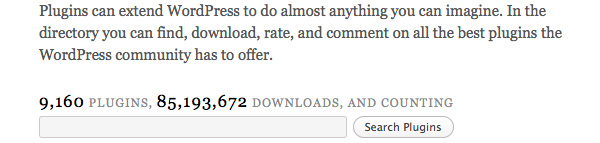
In an alternate reality where clients grow on trees and pay double the going rate, plugins are a ground breaking new treatment from the Hair Club for Men. In this universe, plugins are tiny pieces of software that add functionality to larger programs. Fortunately, there are thousands of plugins written for WordPress and many of them are built specifically to display photos and videos.
My Method
Combine big, beautiful PhotoShelter slideshows with the FancyBox plugin for WordPress and wow your visitors. The process has 15 steps (gasp!) but don’t worry, most of them only need to be done once.
Step One
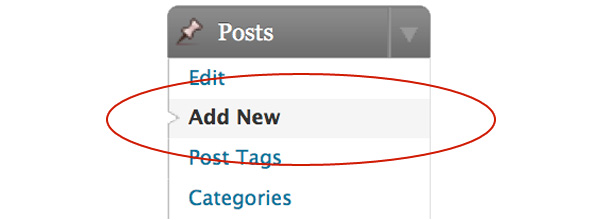
Log into your WordPress blog and click on “Add New” under the Plugins area of the Appearance Tab on the left side of the screen.

Step Two
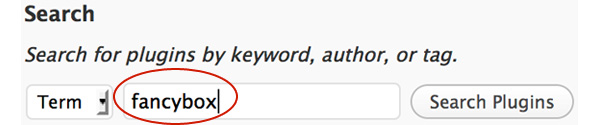
Type “fancybox” in the search form at the top of the page and click the Search Plugins button.
Step Three
In the list or search results, find the “FancyBox for WordPress” plugin written by Jose Pardilla and click the Install link on the right side of the screen.

Step Four
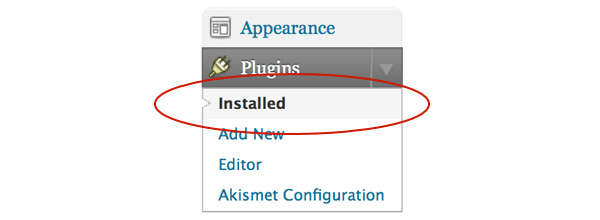
After the plugin has successfully installed, return to the Appearance Tab on the left side of the screen and click on Installed.
Step Five
In the list of installed plugins find “FancyBox for WordPress” and click on Settings.

Step Six
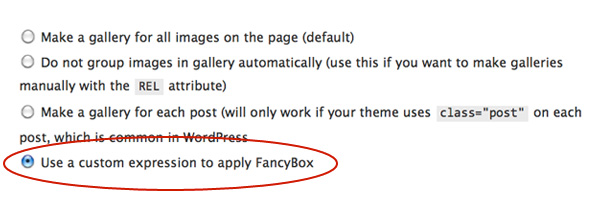
Click on the Galleries tab and change the behavior to “Use a custom expression to apply FancyBox.”

Step Seven
Click on the Other tab and change the Frame Size to the width and height (in pixels) of your PhotoShelter slideshow.


Step Eight
Take a break, send your mother an off-color electronic greeting card and breath easy, you’ll never have to touch any of that stuff ever again.
Step Nine
Create a new post.
Step Ten
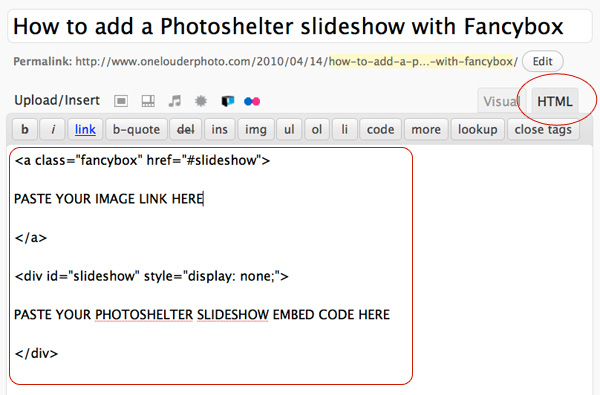
Switch to HTML mode in the WordPress post editor. I know you’re afraid, but I have confidence in you. In the blank area, write the code exactly as you see in the example below.
Step Eleven
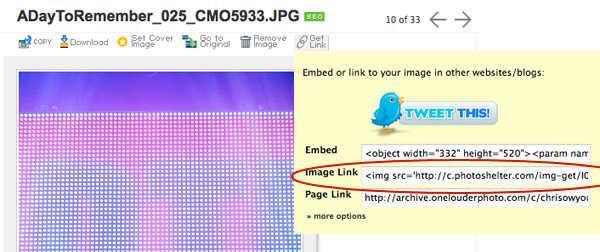
Log into PhotoShelter, and grab the link to the image that will trigger the FancyBox slideshow.
Step Twelve
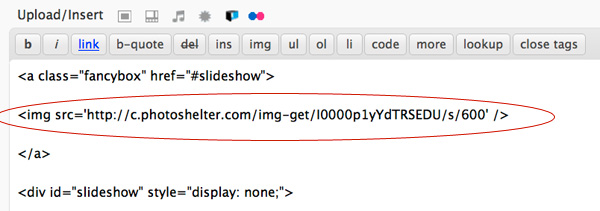
Paste it into your WordPress post. Example below:
Step Thirteen
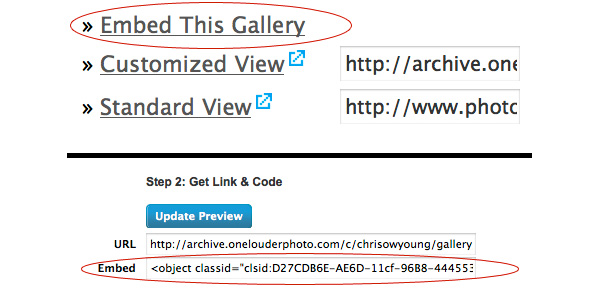
Go to a gallery in your PhotoShelter account, click on “Embed This Gallery” on the left side of the screen and get the embed code for the PhotoShelter slideshow you want to feature inside the FancyBox. (The embed codes for single PhotoShelter photos and vimeo or youtube videos work too).
Step Fourteen
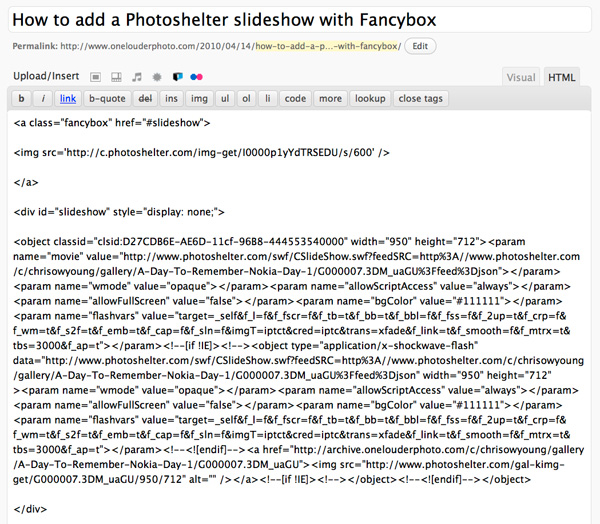
Paste it into your WordPress post. Your finished code should look something like this.
Step Fifteen
Click Save Draft and then Preview to see your slideshow in all it’s big beautiful glory. Congratulations, you’re done!
Next Post: The Many Faces of the PhotoShelter Slideshow
Previous Post: Scanning Old Photos with ScanCafe
You May Also Like
-
Expert Advice and Top Tips from Pro Photographers for 2024
What’s one piece of advice you would give to aspiring or up-and-coming photographers? We asked nine experienced photographers and PhotoShelter members to share their top tips for those looking to get ahead in their photography careers. From finding your own visual voice to working with a mentor or photo assistant, each piece of advice listed […]
-

What’s On Your Photography Holiday Wish List?
The holiday season is around the corner and that means it’s the perfect opportunity to upgrade your gear or find that special gift for the visual storyteller or photography enthusiast in your life. We reached out to a handful of renowned photographers and PhotoShelter members, each with their unique styles and preferences, to bring you […]
-

Share a Photo That Means the World to You
We all have a photo that means the world to us. Maybe it’s one we made ourselves – the first photo from our first camera. It could be an old family photo in a beloved photo album. Or maybe it’s an iconic image that hangs on our wall at home. With World Photography Day coming […]